
Student Support for the
New MyTechCommLab
Registration Help
To register for your version of MyTechCommLab, you will need:
- A student access code. The code is packaged with your textbook, or available for purchase in your bookstore. Your unique code will look something like this:
SMPLE – FRILL – TONLE – WEIRS - CHOIR – FLEES.
If you don't have an access code, you can purchase immediate access on this site. Go to the student registration page and click No, I need to buy access. - A valid email account. Use an account you'll keep for the duration of your course.
How to register a student access code
- Go to the student registration page, select Yes, I have a Course I and then enter the Course ID that your instructor provided.
If you do not know your Course ID, do not continue the registration process. Please contact your instructor.- If you don't have a Pearson MyLab account, click Create.
- If you do have a Pearson MyLab account (if you have used other Pearson online products), sign in with your Pearson MyLab account username and password. Click Sign In.
- Complete your account set up by entering your first and last name, email address, a username and password, and any other required information.
- Complete the registration process.
- If you don't have a Pearson MyLab account, click Create.
TIP! Be sure to take note of your username and password. Write them down in a place you will not forget.
Still need registration help? Check out our Smartguide.
How to buy access
- Go to the student registration page, select Yes, I have a Course ID and then enter the Course ID that your instructor provided. If you do not know your Course ID, do not continue the registration process. Please contact your instructor.
- If you don't have a Pearson MyLab account, click Create.
- If you do have a Pearson MyLab account (if you have used other Pearson online products), sign in with your Pearson MyLab account username and password. Click Sign In.
- Complete your account set up by entering your first and last name, email address, a username and password, and any other required information.
- Click on the price for your product.
- Complete the registration process.
- If you don't have a Pearson MyLab account, click Create.
TIP! Be sure to take note of your username and password. Write them down in a place you will not forget.
Still need registration help? Check out our Smartguide. Back to top
Getting Started
Once you have registered, you can sign in and begin using MyTechCommLab!
How to sign in
- Return to the MyTechCommLab home page.
- Click the Sign In button.
- Select the MyTechCommLab version on the right side of the page. It will look like this:
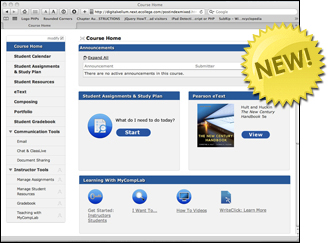
- Enter your username and password.
- Click on the MyTechCommLab link in the "My Places" section.
